Contacts
Keep every lead and customer connected to their interests, conversations, and deals.
Contacts gives your team one place to follow a customer from their first question through a completed sale. Open a contact to see what they want, what your team has discussed, and which deals are connected to them.
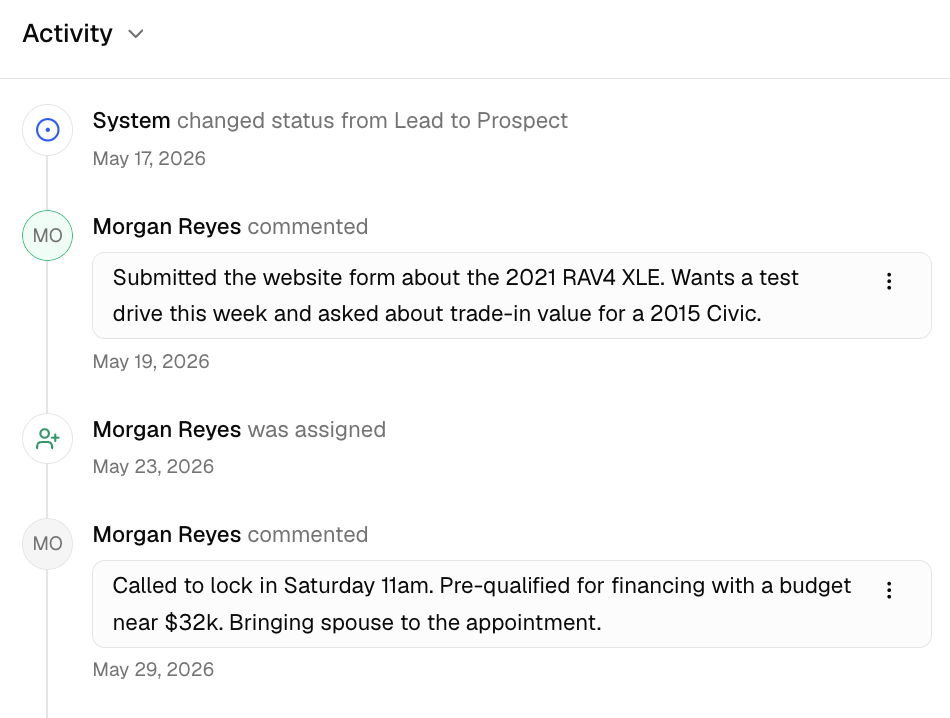
Keep the full customer story together
Know where the relationship stands
Use Lead, Prospect, and Customer statuses so everyone knows the next step.
Connect customers to inventory
Add the vehicles a customer is considering and return to them with one click.
See deal history
Review recent transactions and notes without searching through separate systems.
Fit your dealership
Add custom fields for the extra customer details your team needs to track.
What is on a contact
Each contact has three tabs:
| Tab | What you can do |
|---|---|
| General | Review activity, recent deals, and vehicles of interest |
| Details | Manage contact information, preferences, and dealership-specific fields |
| Documents | Attach files that are safe to share through a link |
The header shows the contact's current status. If you have a phone number or email address saved, you can also use the quick contact actions.
Contact statuses
| Status | Best used for |
|---|---|
| Lead | A new inquiry |
| Prospect | A shopper your team is actively helping |
| Customer | Someone who has completed a deal with you |
Completing a deal tries to change its attached contacts to Customer. Check their statuses after closing the deal.
Find the right person quickly
Use All, Leads, Prospects, and Customers to narrow the list. Search by name or use filters such as:
- Person or Business contact
- Lead source and preferred purchase method
- Vehicle and budget preferences
- Location or company information
- Dealership location
- Custom-field values
- Date created
Use View to choose which columns appear. Multi-location dealerships can also move selected contacts to another location.
Turn storefront inquiries into follow-up
When a shopper sends an inquiry, asks for help, or requests a test drive from your storefront, DealerSpot adds a Lead to the correct dealership location. A returning shopper using the same browser may update the contact created by their earlier visit.
The new Lead can include the shopper's contact information, preferences, and selected Listed vehicles. DealerSpot also notifies Owners and Admins when a new named contact is created.
Test-drive requests add a one-hour Pending event to the shared Calendar. Open Calendar to manage the appointment.
Add a note for a clear handoff
Storefront submissions do not appear in the contact's Activity list. Add a note when your team needs the inquiry details to stay visible on the contact.
Start working with contacts
Add a Contact
Create a contact and add the details your team needs.
Contact Types
Choose the Person or Business layout.
Vehicle Interests
Connect a customer to the vehicles they are considering.
Contact Custom Fields
Track customer details unique to your dealership.
Contact Documents
Attach supporting files that are safe to share by link.